AllTalk Server Status
http://127.0.0.1:7851http://127.0.0.1:7851/ready
AllTalk is a labour of love, developed and supported in my personal free time. As such, my ability to respond to support requests is limited. I prioritize issues based on their impact and the number of users affected. I appreciate your understanding and patience. If your inquiry isn't covered by the documentation or existing discussions, and it's not related to a bug or feature request, I'll do my best to assist as time allows.
If AllTalk has been helpful to you, consider showing your support through a donation on my Ko-fi page. Your support is greatly appreciated and helps ensure the continued development and improvement of AllTalk.
Voice samples are stored in /alltalk_tts/voices/ and should be named using the following format name.wav
Voice outputs are stored in /alltalk_tts/outputs/
You can configure automatic maintenance deletion of old wav files by setting Del WAV's older than in the settings above.
When Disabled your output wav files will be left untouched. When set to a setting 1 Day or greater, your output wav files older than that time period will be automatically deleted on start-up of AllTalk.
This extension will download the 2.0.2 model to /alltalk_tts/models/
This TTS engine will also download the latest available model and store it wherever your OS normally stores it (Windows/Linux/Mac).
To create a new voice sample, you need to make a wav file that is 22050Hz, Mono, 16 bit and between 6 to 30 seconds long, though 8 to 10 seconds is usually good enough. The model can handle up to 30 second samples, however I've not noticed any improvement in voice output from much longer clips.
You want to find a nice clear selection of audio, so lets say you wanted to clone your favourite celebrity. You may go looking for an interview where they are talking. Pay close attention to the audio you are listening to and trying to sample. Are there noises in the background, hiss on the soundtrack, a low humm, some quiet music playing or something? The better quality the audio the better the final TTS result. Don't forget, the AI that processes the sounds can hear everything in your sample and it will use them in the voice its trying to recreate.
Try make your clip one of nice flowing speech, like the included example files. No big pauses, gaps or other sounds. Preferably a sample that the person you are trying to copy will show a little vocal range and emotion in their voice. Also, try to avoid a clip starting or ending with breathy sounds (breathing in/out etc).
So, you’ve downloaded your favourite celebrity interview off YouTube, from here you need to chop it down to 6 to 30 seconds in length and resample it.
If you need to clean it up, do audio processing, volume level
changes etc, do this before down-sampling.
Using the latest version of Audacity select/highlight your 6 to 30 second clip and:
Tracks
> Resample to 22050Hz then
Tracks >
Mix > Stereo to
Mono then
File > Export Audio saving it as a WAV of 22050Hz.
Save your generated wav file in the /alltalk_tts/voices/ folder.
Its worth mentioning that using AI generated audio clips and bad quality samples may introduce unwanted sounds into TTS generation.
Maybe you might be interested in trying Finetuning of the model. Otherwise, the reasons can be that you:
Some samples just never seem to work correctly, so maybe try a different sample. Always remember though, this is an AI model attempting to re-create a voice, so you will never get a 100% match.
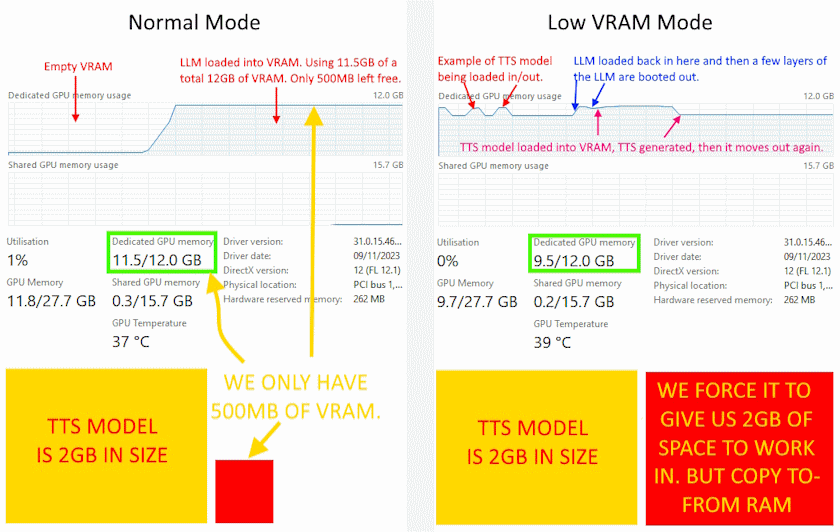
The Low VRAM option is a crucial feature designed to enhance performance under constrained (VRAM) conditions, as the TTS models require 2GB-3GB of VRAM to run effectively. This feature strategically manages the relocation of the Text-to-Speech (TTS) model between your system's Random Access Memory (RAM) and VRAM, moving it between the two on the fly. Obviously, this is very useful for people who have smaller graphics cards or people whos LLM has filled their VRAM.
When you don't have enough VRAM free after loading your LLM model into your VRAM (Normal Mode example below), you can see that with so little working space, your GPU will have to swap in and out bits of the TTS model, which causes horrible slowdown.
Note: An Nvidia Graphics card is required for the LowVRAM option to work, as you will just be using system RAM otherwise.
The Low VRAM mode intelligently orchestrates the relocation of the entire TTS model and stores the TTS model in your system RAM. When the TTS engine requires VRAM for processing, the entire model seamlessly moves into VRAM, causing your LLM to unload/displace some layers, ensuring optimal performance of the TTS engine.
Post-TTS processing, the model moves back to system RAM, freeing up VRAM space for your Language Model (LLM) to load back in the missing layers. This adds about 1-2 seconds to both text generation by the LLM and the TTS engine.
By transferring the entire model between RAM and VRAM, the Low VRAM option avoids fragmentation, ensuring the TTS model remains cohesive and has all the working space it needs in your GPU, without having to just work on small bits of the TTS model at a time (which causes terrible slow down).
This creates a TTS generation performance Boost for Low VRAM Users and is particularly beneficial for users with less than 2GB of free VRAM after loading their LLM, delivering a substantial 5-10x improvement in TTS generation speed.
You HAVE to disable Enable TTS within the Text-generation-webui AllTalk interface, otherwise Text-generation-webui will also generate TTS due to the way it sends out text. You can do this each time you start up Text-generation-webui or set it in the start-up settings at the top of this page.
You have 2 types of audio generation options, Streaming and Standard.
The Streaming Audio Generation method is designed for speed and is best suited for situations where you just want quick audio playback. This method, however, is limited to using just one voice per TTS generation request. This means a limitation of the Streaming method is the inability to utilize the AllTalk narrator function, making it a straightforward but less nuanced option.
On the other hand, the Standard Audio Generation method provides a richer auditory experience. It's slightly slower than the Streaming method but compensates for this with its ability to split text into multiple voices. This functionality is particularly useful in scenarios where differentiating between character dialogues and narration can enhance the storytelling and delivery. The inclusion of the AllTalk narrator functionality in the Standard method allows for a more layered and immersive experience, making it ideal for content where depth and variety in voice narration add significant value.
In summary, the choice between Streaming and Standard methods in AllTalk TTS depends on what you want. Streaming is great for quick and simple audio generation, while Standard is preferable for a more dynamic and engaging audio experience.
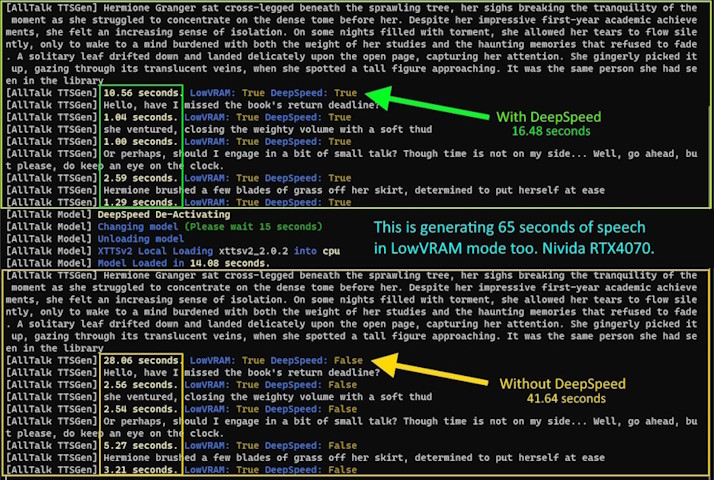
Changing model or DeepSpeed or Low VRAM each take about 15 seconds so you should only change one at a time and wait for Ready before changing the next setting. To set these options long term you can apply the settings at the top of this page.
Only available on the Standard Audo Generation method.
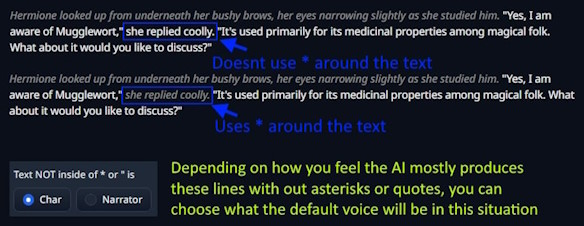
Messages intended for the Narrator should be enclosed in asterisks * and those for the character
inside quotation marks ". However, AI systems often deviate from these rules, resulting in
text that is neither in quotes nor asterisks. Sometimes, text may appear with only a single asterisk, and AI
models may vary their formatting mid-conversation. For example, they might use asterisks initially and then
switch to unmarked text. A properly formatted line should look like this:
"Hey! I'm so excited to finally meet you. I've heard so many great things about you
and I'm eager to pick your brain about computers." *She walked across the
room and picked up her cup of coffee*
Most narrator/character systems switch voices upon encountering an asterisk or quotation marks, which is somewhat effective. AllTalk has undergone several revisions in its sentence splitting and identification methods. While some irregularities and AI deviations in message formatting are inevitable, any line beginning or ending with an asterisk should now be recognized as Narrator dialogue. Lines enclosed in double quotes are identified as Character dialogue. For any other text, you can choose how AllTalk handles it: whether it should be interpreted as Character or Narrator dialogue (most AI systems tend to lean more towards one format when generating text not enclosed in quotes or asterisks).
With improvements to the splitter/processor, I'm confident it's functioning well. You can monitor what AllTalk identifies as Narrator lines on the command line and adjust its behavior if needed (Text Not Inside - Function).
AllTalk is coded to start on 127.0.0.1, meaning that it will ONLY be accessable to the local computer it is running on. If you want to make AllTalk available to other systems on your network, you will need to change its IP address to match the IP address of your network card/computers current IP address. There are 2x ways to change the IP address:
confignew.jsonfile in a text editor and change
"ip_address": "127.0.0.1", to the IP address of your choosing.
So, for example, if your computer's network card was on IP address 192.168.0.20, you would change AllTalk's setting to 192.168.1.20 and then restart AllTalk. You will need to ensure your machine stays on this IP address each time it is restarted, by setting your machine to have a static IP address.
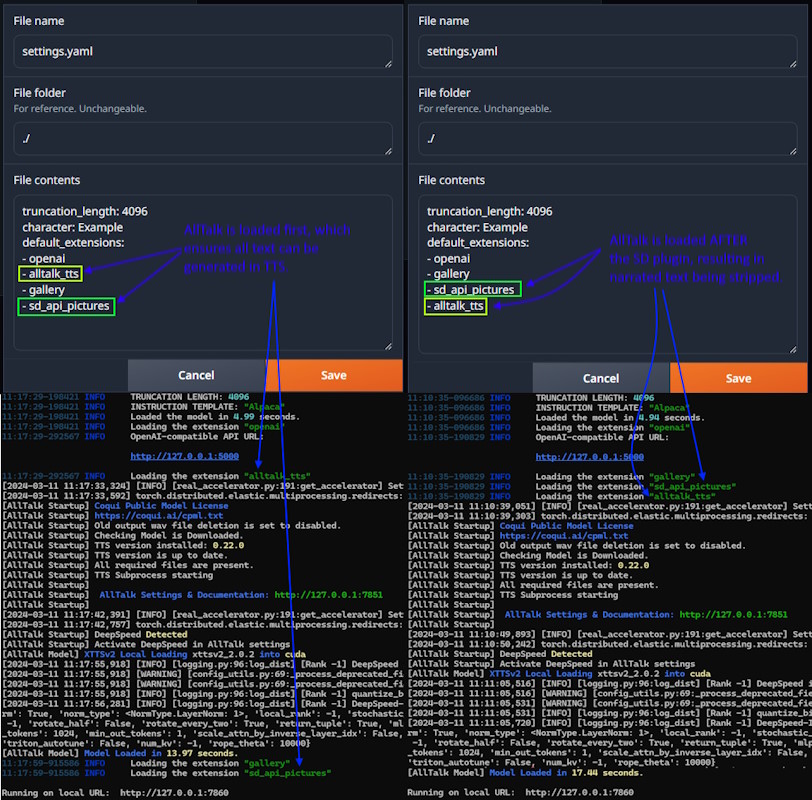
The Stable Diffusion plugin for Text-generation-webui strips out some of the text, which is
passed to Stable Diffusion for image/scene generation. Because this text is stripped, its important to
consider the load order of the plugins to get the desired result you want. Lets assume the AI has just
generated the following message
*He walks into the room with a smile on his face and says* Hello how are you?. Depending on the
load order will change what text reaches AllTalk for generation e.g.
SD Plugin loaded before AllTalk - Only Hi how are you? is sent to AllTalk, with
the *He walks into the room with a smile on his face and says* being sent over to SD for image
generation. Narration of the scene is not possible.
AllTalk loaded before SD Plugin -
*He walks into the room with a smile on his face and says* Hello how are you? is sent to
AllTalk with the *He walks into the room with a smile on his face and says* being sent over to
SD for image generation.
The load order can be changed within Text-generation-webui's settings.yaml file or
cmd_flags.txt (depending on how you are managing your extensions).
Currently the XTTS model is the main model used by AllTalk for TTS generation. If you want to know more details about the XTTS model, its capabilties or its technical features you can look at resources such as:
Maintaining the latest version of your setup ensures access to new features and improvements. Below are the steps to update your installation, whether you're using Text-Generation-webui or running as a Standalone Application.
The update process closely mirrors the installation steps. Follow these to ensure your setup remains current:
Open a Command Prompt/Terminal:
cd text-generation-webuiStart the Python Environment:
cmd_windows.bat./cmd_linux.shcmd_macos.shcmd_wsl.batIf you're unfamiliar with Python environments and wish to learn more, consider reviewing Understanding Python Environments Simplified in the Help section.
Navigate to the AllTalk TTS Folder:
cd extensions/alltalk_ttsUpdate the Repository:
git pullInstall Updated Requirements:
pip install -r system\requirements\requirements_textgen.txtpip install -r system/requirements/requirements_textgen.txtFor Standalone Application users, here's how to update your setup:
Open a Command Prompt/Terminal:
cd alltalk_ttsAccess the Python Environment:
alltalk_tts directory and
start the Python environment:start_environment.bat./start_environment.shIf you're unfamiliar with Python environments and wish to learn more, consider reviewing Understanding Python Environments Simplified in the Help section.
Pull the Latest Updates:
git pullInstall Updated Requirements:
pip install -r system\requirements\requirements_standalone.txtpip install -r system/requirements/requirements_standalone.txtIf you encounter problems during or after an update, following these steps can help resolve the issue by refreshing your installation while preserving your data:
The process involves renaming your existing alltalk_tts directory, setting up a fresh instance,
and then migrating your data:
Rename Existing Directory:
alltalk_tts folder to back it up, e.g.,
alltalk_tts.old. This preserves any existing data.
Open a Console/Terminal:
Navigate to the Text-generation-webui directory and start the Python environment appropriate for your operating system:
cd text-generation-webuiThen use one of the following commands based on your OS:
cmd_windows.bat./cmd_linux.shcmd_macos.shcmd_wsl.batIf you're not familiar with Python environments, see Understanding Python Environments Simplified in the Help section for more info.
Clone the AllTalk TTS Repository:
extensions directory and clone a fresh copy of
alltalk_tts:cd extensionsgit clone https://github.com/erew123/alltalk_ttsInstall Requirements:
alltalk_tts directory and install the necessary
dependencies for your system:cd alltalk_ttspip install -r system\requirements\requirements_textgen.txtpip install -r system/requirements/requirements_textgen.txtMigrate Your Data:
models, voices, and
outputs folders from alltalk_tts.old to the new
alltalk_tts directory. This action preserves your voice history and prevents the
need to re-download the model.
You're now ready to launch Text-generation-webui. Note that you may need to reapply any previously saved configuration changes through the configuration page.
alltalk_tts.old directory to free up space.DeepSpeed requires an Nvidia Graphics card
DeepSpeed provides a 2x-3x speed boost for Text-to-Speech and AI tasks. It's all about making AI and TTS happen faster and more efficiently.
DeepSpeed requires access to the Nvidia CUDA Development Toolkit to compile on a Linux system. It's important to note that this toolkit is distinct and unrealted to your graphics card driver or the CUDA version the Python environment uses.
Nvidia CUDA Development Toolkit Installation:
Open a Terminal Console:
Install libaio-dev:
Use your Linux distribution's package manager.
sudo apt install libaio-dev for Debian-based systemssudo yum install libaio-devel for RPM-based systems.Navigate to Text generation webUI Folder:
cd text-generation-webui.
Activate Text generation webUI Custom Conda Environment:
./cmd_linux.sh to start the environment.If you're unfamiliar with Python environments and wish to learn more, consider reviewing Understanding Python Environments Simplified in the Help section.
Set CUDA_HOME Environment Variable:
CUDA_HOME environment variable../cmd_linux.sh or ./start_linux.shTemporarily Configuring CUDA_HOME:
When the Text generation webUI Python environment is active (step 5), set
CUDA_HOME.
export CUDA_HOME=/usr/local/cudaexport PATH=${CUDA_HOME}/bin:${PATH}export LD_LIBRARY_PATH=${CUDA_HOME}/lib64:$LD_LIBRARY_PATHYou can confirm the path is set correctly and working by running the command
nvcc --version should confirm
Cuda compilation tools, release 11.8..
Incorrect path settings may lead to errors. If you encounter path issues or receive errors
like [Errno 2] No such file or directory when you run the next step, confirm
the path correctness or adjust as necessary.
DeepSpeed Installation:
pip install deepspeed.Troubleshooting:
Nvidia CUDA Development Toolkit Installation:
Open a Terminal Console:
Install libaio-dev:
Use your Linux distribution's package manager.
sudo apt install libaio-dev for Debian-based systemssudo yum install libaio-devel for RPM-based systems.Navigate to AllTalk TTS Folder:
cd alltalk_tts.Activate AllTalk Custom Conda Environment:
./start_environment.sh to start the AllTalk Python environment../atsetup.sh.If you're unfamiliar with Python environments and wish to learn more, consider reviewing Understanding Python Environments Simplified in the Help section.
Set CUDA_HOME Environment Variable:
CUDA_HOME
environment variable. This can be set temporarily for a session or permanently, depending on
other requirements you may have for other Python/System environments.(Optional) Permanent CUDA_HOME Setup:
CUDA_HOME permanently, follow the instructions in the provided
Conda manual link above.Configuring CUDA_HOME:
When your Python environment is active (step 5), set CUDA_HOME.
export CUDA_HOME=/usr/local/cudaexport PATH=${CUDA_HOME}/bin:${PATH}export LD_LIBRARY_PATH=${CUDA_HOME}/lib64:$LD_LIBRARY_PATHYou can confirm the path is set correctly and working by running the command
nvcc --version should confirm
Cuda compilation tools, release 11.8..
Incorrect path settings may lead to errors. If you encounter path issues or receive errors
like [Errno 2] No such file or directory when you run the next step, confirm
the path correctness or adjust as necessary.
DeepSpeed Installation:
pip install deepspeed.Starting AllTalk TTS WebUI:
./start_alltalk.sh and enable DeepSpeed.CUDA_HOME results in path duplication errors (e.g.,
.../bin/bin/nvcc), you can correct this by unsetting CUDA_HOME with
unset CUDA_HOME and then adding the correct path to your system's PATH variable.
pip uninstall deepspeedYou have 2x options for how to setup DeepSpeed on Windows. Pre-compiled wheel files for specific Python, CUDA and Pytorch builds, or manually compiling DeepSpeed.
Introduction to Pre-compiled Wheels:
atsetup.bat utility simplifies the installation of DeepSpeed by automatically
downloading and installing pre-compiled wheel files. These files are tailored for
specific versions of Python, CUDA, and PyTorch, ensuring compatibility with
both the Standalone Installation and a standard build of
Text-generation-webui.
Manual Installation of Pre-compiled Wheels:
pip install {deep-speed-wheel-file-name-here}pip uninstall deepspeedUsing atsetup.bat for Simplified Management:
atsetup.bat utility offers the simplest and most efficient way to manage DeepSpeed
installations on Windows.
Preparation for Manual Compilation:
Understanding Wheel Compatibility:
Compiling DeepSpee Resources:
I'm thrilled to see the enthusiasm and engagement with AllTalk! Your feedback and questions are invaluable, helping to make this project even better. To ensure everyone gets the help they need efficiently, please consider the following before submitting a support request:
Consult the Documentation: A comprehensive guide and FAQ sections (below) are available to help you navigate AllTalk. Many common questions and troubleshooting steps are covered here.
Search Past Discussions: Your issue or question might already have been addressed in the discussions area or closed issues. Please use the search function to see if there's an existing solution or advice that applies to your situation.
Bug Reports: If you've encountered what you believe is a bug, please first check the Updates & Bug Fixes List to see if it's a known issue or one that's already been resolved. If not, I encourage you to report it by raising a bug report in the Issues section, providing as much detail as possible to help identify and fix the issue.
Feature Requests: The current Feature request list can be found here. I love hearing your ideas for new features! While I can't promise to implement every suggestion, I do consider all feedback carefully. Please share your thoughts in the Discussions area or via a Feature Request in the Issues section.
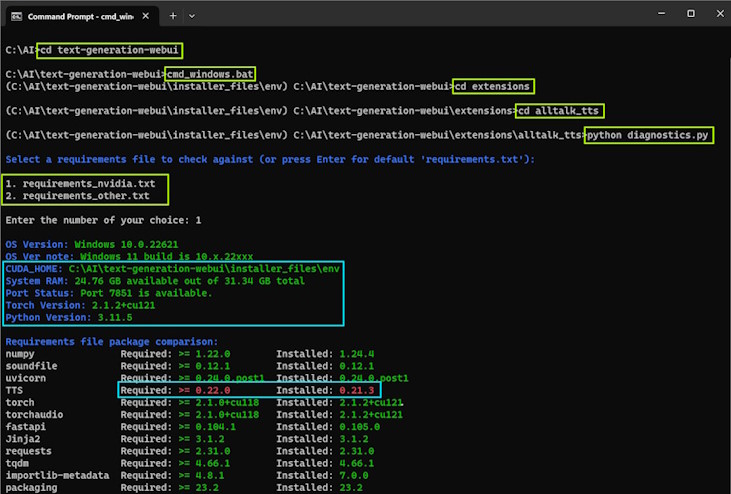
If you are on a Windows machine or a Linux machine, you should be able to use the atsetup.bat or
./atsetup.sh utility to create a diagnositcs file. If you are unable to use the
atsetup utility, please follow the instructions below.
For Text-generation-webui Users:
cd text-generation-webuicmd_windows.bat./cmd_linux.shcmd_macos.shcmd_wsl.batcd extensions/alltalk_ttsFor Standalone AllTalk Users:
alltalk_tts folder:cd alltalk_ttsstart_environment.bat./start_environment.shIf you're unfamiliar with Python environments and wish to learn more, consider reviewing Understanding Python Environments Simplified in the Help section.
Run the diagnostics and select the requirements file name you installed AllTalk with:
python diagnostics.pyYou will have an on screen output showing your environment setttings, file versions request vs
whats installed and details of your graphics card (if Nvidia). This will also create a file
called diagnostics.log in the alltalk_tts folder, that you can upload
if you need to create a support ticket on here.
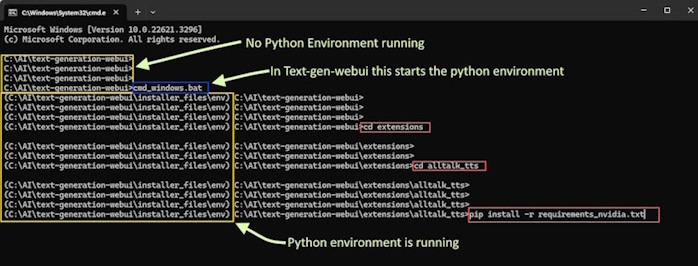
Think of Python environments like different rooms in your house, each designed for a specific purpose. Just as you wouldn't cook in the bathroom or sleep in the kitchen, different Python applications need their own "spaces" or environments because they have unique requirements. Sometimes, these requirements can clash with those of other applications (imagine trying to cook a meal in a bathroom!). To avoid this, you can create separate Python environments.
Separate environments, like separate rooms, keep everything organized and prevent conflicts. For instance, one Python application might need a specific version of a library or dependency, while another requires a different version. Just as you wouldn't store kitchen utensils in the bathroom, you wouldn't want these conflicting requirements to interfere with each other. Each environment is tailored and customized for its application, ensuring it has everything it needs without disrupting others.
Standalone AllTalk Installation: When you install AllTalk standalone, it's akin to
adding a new room to your house specifically designed for your AllTalk activities. The setup process, using
the atsetup utility, constructs this custom "room" (Python environment
alltalk_environment) with all the necessary tools and furnishings (libraries and dependencies)
that AllTalk needs to function smoothly, without meddling with the rest of your "house" (computer
system). The AllTalk environment is started each time you run start_alltalk or
start_environment within the AllTalk folder.
Text-generation-webui Installation: Similarly, installing Text-generation-webui is like
setting up another specialized room. Upon installation, it automatically creates its own tailored
environment, equipped with everything required for text generation, ensuring a seamless and conflict-free
operation. The Text-generation-webui environment is started each time you run
start_*your-os-version* or cmd_*your-os-version* within the Text-generation-webui
folder.
Just as you might renovate a room or bring in new furniture, you can also update or modify Python environments as needed. Tools like Conda or venv make it easy to manage these environments, allowing you to create, duplicate, activate, or delete them much like how you might manage different rooms in your house for comfort and functionality.
Once you're in the right environment, by activating it, installing or updating dependencies (the tools and furniture of your Python application) is straightforward. Using pip, a package installer for Python, you can easily add what you need. For example, to install all required dependencies listed in a requirements.txt file, you'd use:
pip install -r requirements.txt
This command tells pip to read the list of required packages and versions from the requirements.txt file and install them in the current environment, ensuring your application has everything it needs to operate. It's like having a shopping list for outfitting a room and ensuring you have all the right items delivered and set up.
Remember, just as it's important to use the right tools for tasks in different rooms of your house, it's crucial to manage your Python environments and dependencies properly to ensure your applications run as intended.
When a Python environment starts up, it changes the command prompt to show the Python environment that it currently running within that terminal/console.
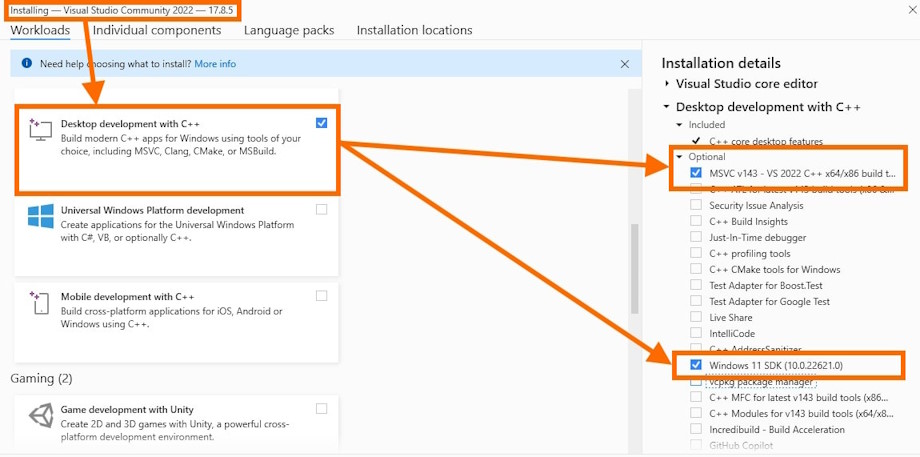
ERROR: Microsoft Visual C++ 14.0 or greater is required or
ERROR: Could not build wheels for TTS. or
ModuleNotFoundError: No module named 'TTS
Python requires that you install C++ development tools on Windows. This is detailed on the Python site here. You would need to install
MSVCv142 - VS 2019 C++ x64/x86 build tools and Windows 10/11 SDK from the C++
Build tools section.
You can get hold of the Community edition here the during installation, selecting
C++ Build tools and then MSVCv142 - VS 2019 C++ x64/x86 build tools and
Windows 10/11 SDK.
This is more than likely caused by having a - in your folder path e.g.
c:\myfiles\alltalk_tts-main. In this circumstance you would be best renaming the folder to
remove the - from its name e.g. c:\myfiles\alltalk_tts, delete the
alltalk_environment folder and start_alltalk.bat or start_alltalk.sh
and then re-run atsetup to re-create the environment and startup files.
Ive paid very close attention to not impact what Text-generation-webui is requesting on a factory install. This is one of the requirements of submitting an extension to Text-generation-webui. If you want to look at a comparison of a factory fresh text-generation-webui installed packages (with cuda 12.1, though AllTalk's requirements were set on cuda 11.8) you can find that comparison here. This comparison shows that AllTalk is requesting the same package version numbers as Text-generation-webui or even lower version numbers (meaning AllTalk will not update them to a later version). What other extensions do, I cant really account for that.
I will note that the TTS engine downgrades Pandas data validator to 1.5.3 though its unlikely to cause any
issues. You can upgrade it back to text-generation-webui default (december 2023) with
pip install pandas==2.1.4 when inside of the python environment. I have noticed no ill effects
from it being a lower or higher version, as far as AllTalk goes. This is also the same behaviour as the
Coqui_tts extension that comes with Text-generation-webui.
Other people are reporting issues with extensions not starting with errors about Pydantic e.g.
pydantic.errors.PydanticImportError: BaseSettings` has been moved to the pydantic-settings package. See https://docs.pydantic.dev/2.5/migration/#basesettings-has-moved-to-pydantic-settings for more details.
Im not sure if the Pydantic version has been recently updated by the Text-generation-webui installer, but
this is nothing to do with AllTalk. The other extension you are having an issue with, need to be updated to
work with Pydantic 2.5.x. AllTalk was updated in mid december to work with 2.5.x. I am not specifically
condoning doing this, as it may have other knock on effects, but within the text-gen Python environment, you
can use pip install pydantic==2.5.0 or pip install pydantic==1.10.13 to change the
version of Pydantic installed.
I would suggest following Problems Updating and if you still have issues after that, you can raise an issue here
You will need to change the IP address within AllTalk's settings from being 127.0.0.1, which only allows access from the local machine its installed on. To do this, please see Changing AllTalks IP address & Accessing AllTalk over your Network at the top of this page.
You may also need to allow access through your firewall or Antivirus package to AllTalk.
To do this you can edit the confignew.json file within the alltalk_tts folder. You
would look for "ip_address": "127.0.0.1", and change the
127.0.0.1 to your chosen IP address,then save the file and start AllTalk.
When doing this, be careful not to impact the formatting of the JSON file. Worst case, you can re-download a
fresh copy of confignew.json from this website and that will put you back to a factory setting.
You can either follow the Problems
Updating and fresh install your config. Or you can edit the confignew.json file within
the alltalk_tts folder. You would look for '"deepspeed_activate": true,' and
change the word true to false `"deepspeed_activate": false,' ,then save the file and try
starting again.
If you want to use DeepSpeed, you need an Nvidia Graphics card and to install DeepSpeed on your system. Instructions are here
Please see Problems Updating. If that
doesnt help you can raise an ticket here. It
would be handy to have any log files from the console where your error is being shown. I can only losely
support custom built Python environments and give general pointers. Please create a
diagnostics.log report file to submit with a support request.
Also, is your text-generation-webui up to date? instructions here
As far as I am aware, these are to do with the chrome browser the gradio text-generation-webui in some way. I raised an issue about this on the text-generation-webui here where you can see that AllTalk is not loaded and the messages persist. Either way, this is more a warning than an actual issue, so shouldnt affect any functionality of either AllTalk or text-generation-webui, they are more just an annoyance.
A) Its trying to load the voice model into your graphics card VRAM (assuming you have a
Nvidia Graphics card, otherwise its your system RAM)
B) Its trying to start up the mini-webserver and send the "ready" signal back to
the main process.
Before giving other possibilities a go, some people with old machines are finding their
startup times are very slow 2-3 minutes. Ive extended the allowed time within the script
from 1 minute to 2 minutes. If you have an older machine and wish to try extending this
further, you can do so by editing script.py and changing startup_wait_time = 120
(120 seconds, aka 2 minutes) at the top of the script.py file, to a larger value e.g
startup_wait_time = 240 (240 seconds aka 4 minutes).
Note: If you need to create a support ticket, please create a diagnostics.log
report file to submit with a support request. Details on doing this are above.
Other possibilities for this issue are:
You are starting AllTalk in both your CMD FLAG.txt and settings.yaml file.
The CMD FLAG.txt you would have manually edited and the settings.yaml is
the one you change and save in the session tab of text-generation-webui and you can
Save UI defaults to settings.yaml. Please only have one of those two starting up
AllTalk.
You are not starting text-generation-webui with its normal Python environment. Please start it with
start_{your OS version} as detailed here
(start_windows.bat,./start_linux.sh, start_macos.sh or
start_wsl.bat) OR (cmd_windows.bat, ./cmd_linux.sh,
cmd_macos.sh or cmd_wsl.bat and then python server.py).
You have installed the wrong version of DeepSpeed on your system, for the wrong version of
Python/Text-generation-webui. You can go to your text-generation-webui folder in a terminal/command
prompt and run the correct cmd version for your OS e.g. (cmd_windows.bat,
./cmd_linux.sh, cmd_macos.sh or cmd_wsl.bat) and then you can
type pip uninstall deepspeed then try loading it again. If that works, please see here
for the correct instructions for installing DeepSpeed here.
You have an old version of text-generation-webui (pre Dec 2023) I have not tested on older versions
of text-generation-webui, so cannot confirm viability on older versions. For instructions on
updating the text-generation-webui, please look here
(update_linux.sh, update_windows.bat, update_macos.sh, or
update_wsl.bat).
You already have something running on port 7851 on your computer, so the mini-webserver cant start on
that port. You can change this port number by editing the confignew.json file and
changing "port_number": "7851" to
"port_number": "7602" or any port number you wish that isn’t
reserved. Only change the number and save the file, do not change the formatting of the document.
This will at least discount that you have something else clashing on the same port number.
You have antivirus/firewalling that is blocking that port from being accessed. If you had to do something to allow text-generation-webui through your antivirus/firewall, you will have to do that for this too.
You have quite old graphics drivers and may need to update them.
Something within text-generation-webui is not playing nicely for some reason. You can go to your
text-generation-webui folder in a terminal/command prompt and run the correct cmd version for your
OS e.g. (cmd_windows.bat, ./cmd_linux.sh, cmd_macos.sh or
cmd_wsl.bat) and then you can type python extensions\alltalk_tts\script.py
and see if AllTalk starts up correctly. If it does then something else is interfering.
Something else is already loaded into your VRAM or there is a crashed python process. Either check your task manager for erroneous Python processes or restart your machine and try again.
You are running DeepSpeed on a Linux machine and although you are starting with
./start_linux.sh AllTalk is failing there on starting. This is because
text-generation-webui will overwrite some environment variables when it loads its python
environment. To see if this is the problem, from a terminal go into your text-generation-webui
folder and ./cmd_linux.sh then set your environment variable again e.g.
export CUDA_HOME=/usr/local/cuda (this may vary depending on your OS, but this is the
standard one for Linux, and assuming you have installed the CUDA toolkit), then
python server.py and see if it starts up. If you want to edit the environment
permanently you can do so, I have not managed to write full instructions yet, but here is the conda
guide here.
You have built yourself a custom Python environment and something is funky with it. This is very hard to diagnose as its not a standard environment. You may want to updating text-generation-webui and re installing its requirements file (whichever one you use that comes down with text-generation-webui).
Finetuning pulls in various other scripts and some of those scripts can have issues with multiple Nvidia GPU's being present. Until the people that created those other scripts fix up their code, there is a workaround to temporarily tell your system to only use the 1x of your Nvidia GPU's. To do this:
Windows - You will start the script with
set CUDA_VISIBLE_DEVICES=0 && python finetune.py
After you have completed training, you can reset back with
set CUDA_VISIBLE_DEVICES=
Linux - You will start the script with
CUDA_VISIBLE_DEVICES=0 python finetune.py
After you have completed training, you can reset back with
unset CUDA_VISIBLE_DEVICES
Rebooting your system will also unset this. The setting is only applied temporarily.
Depending on which of your Nvidia GPU's is the more powerful one, you can change the 0 to
1 or whichever of your GPU's is the most powerful.
This is a long standing issue with Firefox and one I am unable to resolve. The solution is to use another web browser if you want to use Streaming audio. For details of my prior invesitigation please look at this ticket
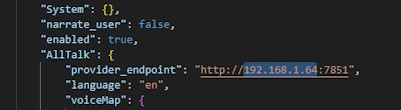
SillyTavern checks the IP address when loading extensions, saving the IP to its configuration only if the check succeeds. For whatever reason, SillyTavern's checks dont always allow changing its IP address a second time.
To manually change the IP address:
/sillytavern/public/.settings.json file.provider_endpoint entry.localhost with your desired IP address, for example, 192.168.1.64.
No, the XTTS AI model does not currently support direct control over emotions or singing capabilities. While XTTS infuses generated speech with a degree of emotional intonation based on the context of the text, users cannot explicitly control this aspect. It's worth noting that regenerating the same line of TTS may yield slightly different emotional inflections, but there is no way to directly control it with XTTS.
Firstly, it's important to clarify that the development and maintenance of the XTTS AI models and core scripts are handled by Coqui, with additional scripts and libraries from entities like huggingface among many other Python scripts and libraries used by AllTalk.
AllTalk is designed to be a straightforward interface that simplifies setup and interaction with AI TTS models like XTTS. Currently, AllTalk supports the XTTS model, with plans to include more models in the future. Please understand that the deep inner workings of XTTS, including reasons why it may skip, repeat, or mispronounce, along with 3rd party scripts and libraries utilized, are ultimately outside my control.
Although I ensure the text processed through AllTalk is accurately relayed to the XTTS model speech generation process, and I have aimed to mitigate as many issues as much as possible; skips, repeats and bad pronounciation can still occur.
Certain aspects I have not been able to investigate due to my own time limitations, are:
From my experience and anecdotally gained knowledge:
*, hashes #,
brackets ( ) etc. Many of these AllTalk will filter out.So for example, the female_01.wav file that is provided with AllTalk is a studio quality voice
sample, which the XTTS model was trained on. Typically you will find it unlikely that anomolies occur with
TTS generation when using this voice sample. Hence good quality samples and finetuning, generally improve
results with XTTS.
If you wish to try out the XTTS version 2.0.3 model and see if it works better, you can download it from here, replacing all the files within your
/alltalk_tts/models/xttsv2_2.0.2 folder. This is on my list to both test version 2.0.3 more,
but also build a more flexible TTS models downloader, that will not only accomdating other XTTS models, but
also other TTS engines. If you try the XTTS version 2.0.3 model and gleen any insights, please let me know.
If you have a voice that the model doesnt quite reproduce correctly, or indeed you just want to improve the
reproduced voice, then finetuning is a way to train your "XTTSv2 local" model (stored in
/alltalk_tts/models/xxxxx/) on a specific voice. For this you will need:
Everything has been done to make this as simple as possible. At its simplest, you can literally just download a large chunk of audio from an interview, and tell the finetuning to strip through it, find spoken parts and build your dataset. You can literally click 4 buttons, then copy a few files and you are done. At it's more complicated end you will clean up the audio a little beforehand, but its still only 4x buttons and copying a few files.
I would suggest that if its in an interview format, you cut out the interviewer speaking in audacity or your chosen audio editing package. You dont have to worry about being perfect with your cuts, the finetuning Step 1 will go and find spoken audio and cut it out for you. Is there is music over the spoken parts, for best quality you would cut out those parts, though its not 100% necessary. As always, try to avoid bad quality audio with noises in it (humming sounds, hiss etc). You can try something like Audioenhancer to try clean up noisier audio. There is no need to down-sample any of the audio, all of that is handled for you. Just give the finetuning some good quality audio to work with.
Yes you can. You would do these as multiple finetuning's, but its absolutely possible and fine to do. Finetuning the XTTS model does not restrict it to only being able to reproduce that 1x voice you trained it on. Finetuning is generally nuding the model in a direction to learn the ability to sound a bit more like a voice its not heard before.
Portions of Coqui's TTS trainer scripts gather anonymous training information which you can disable. Their
statement on this is listed here. If you start
AllTalk Finetuning with start_finetuning.bat or ./start_finetuning.sh telemetry will
be disabled. If you manually want to disable it, please expand the below:
Before starting finetuning, run the following in your terminal/command prompt:
set TRAINER_TELEMETRY=0export TRAINER_TELEMETRY=0Before you start finetune.py. You will now be able to finetune offline and no anonymous training
data will be sent.
All the requirements for Finetuning will be installed by using the atsetup utility and installing your correct requirements (Standalone or for Text-generation-webui). The legacy manual instructions are stored below, however these shouldnt be required.
Download the Toolkit:
Run the Installer:
CUDA > Development > Compiler >
nvcc
CUDA > Development > Libraries >
CUBLAS (both development and runtime)
Configure Environment Search Path:
It's essential that nvcc and CUDA 11.8 library files are discoverable in
your environment's search path. Adjustments can be reverted post-fine-tuning if desired.
For Windows:
Path environment variable to include
C:\Program Files\NVIDIA GPU Computing Toolkit\CUDA\v11.8\bin.
CUDA_HOME and set its path to
C:\Program Files\NVIDIA GPU Computing Toolkit\CUDA\v11.8.
For Linux:
export CUDA_HOME=/usr/local/cuda
export PATH=${CUDA_HOME}/bin:${PATH}
export LD_LIBRARY_PATH=${CUDA_HOME}/lib64:$LD_LIBRARY_PATH
Consider adding these to your ~/.bashrc for permanence, or apply
temporarily for the current session by running the above commands each time
you start your Python environment.
Note: If using Text-generation-webui, its best to set these temporarily.
Verify Installation:
nvcc --version.Cuda compilation tools, release 11.8.
Specifically, ensure it is version 11.8.Troubleshooting:
cu118 and CUDA 12.1 to cu121 in AllTalk
diagnostics.NOTE: Ensure AllTalk has been launched at least once after any updates to download necessary files for fine-tuning.
Close Resource-Intensive Applications:
Organize Voice Samples:
/alltalk_tts/finetune/put-voice-samples-in-here/
Depending on your setup (Text-generation-webui or Standalone AllTalk), the steps to start the Python environment vary:
For Standalone AllTalk Users:
alltalk_tts folder:cd alltalk_ttsstart_finetune.bat./start_finetune.shFor Text-generation-webui Users:
cd text-generation-webuicmd_windows.bat./cmd_linux.shcmd_macos.shcmd_wsl.batcd extensions/alltalk_tts export LD_LIBRARY_PATH=`python3 -c 'import os; import nvidia.cublas.lib; import nvidia.cudnn.lib; print(os.path.dirname(nvidia.cublas.lib.__file__) + ":" + os.path.dirname(nvidia.cudnn.lib.__file__))'`python finetune.pyIf you're unfamiliar with Python environments and wish to learn more, consider reviewing Understanding Python Environments Simplified in the Help section.
Pre-Flight Checklist:
Post Fine-tuning Actions:
These steps guide you through the initial preparations, starting the Python environment based on your setup, and the fine-tuning process itself. Ensure all prerequisites are met to facilitate a smooth fine-tuning experience.
In finetuning the suggested/recommended amount of epochs, batch size, evaluation percent etc is already set. However, there is no absolutely correct answer to what the settings should be, it all depends on what you are doing.
There are no absolute correct settings, as there are too many variables, ranging from the amount of samples you are using (5 minutes worth? 4 hours worth? etc), if they are similar samples to what the AI model already understands, so on and so forth. Coqui whom originally trained the model usually say something along the lines of, once you’ve trained it X amount, if it sounds good then you are done and if it doesn’t, train it more.
In the process of finetuning, it's crucial to balance the data used for training the model against the data
reserved for evaluating its performance. Typically, a portion of the dataset is set aside as an 'evaluation
set' to assess the model's capabilities in dealing with unseen data. On Step 1 of finetuning you have
the option to adjust this evaluation data percentage, offering more control over your model training
process.
Why Adjust the Evaluation Percentage?
Adjusting the evaluation percentage can be beneficial in scenarios with limited voice samples.
When dealing with a smaller dataset, allocating a slightly larger portion to training could enhance the
model's ability to learn from these scarce samples. Conversely, with abundant data, a higher evaluation
percentage might be more appropriate to rigorously test the model's performance. There are currently no
absolutely optimal split percentages as it varies by dataset.
Default Setting: The default evaluation percentage is set at 15%, which is a balanced choice for most datasets.
Adjustable Range: Users can now adjust this percentage, but it’s generally recommend keeping it between 5% and 30%.
Understanding the Impact: Before adjusting this setting, it's important to understand its impact on model training and evaluation. Incorrect adjustments can lead to suboptimal model performance.
Gradual Adjustments: For those unfamiliar with the process, we recommend reading up on training data and training sets, then making small, incremental changes and observing their effects.
Data Quality: Regardless of the split, the quality of the audio data is paramount. Ensure that your datasets are built from good quality audio with enough data within them.
At the end of the finetune process, you will have an option to
Compact and move model to /trainedmodel/ this will compact the raw training file and move it to
/model/trainedmodel/. When AllTalk starts up within Text-generation-webui, if it finds a model in
this location a new loader will appear in the interface for XTTSv2 FT and you can use this to load
your finetuned model.
Be careful not to train a new model from the base model, then
overwrite your current /model/trainedmodel/ if you want a seperately trained
model. This is why there is an OPTION B to move your just trained model to
/models/lastfinetuned/.
At the end of the finetune process, you will have an option to
Compact and move model to /trainedmodel/ this will compact the raw training file and move it to
/model/trainedmodel/. This model will become available when you start up finetuning. You will have
a choice to train the Base Model or the Existing finetuned model (which is the one in
/model/trainedmodel/). So you can use this to keep further training this model with additional
voices, then copying it back to /model/trainedmodel/ at the end of training.
If you've compacted and moved your model, its highly unlikely you would want to keep that data, however the choice is there to keep it if you wish. It will be between 5-10GB in size, so most people will want to delete it.
AllTalk TTS Generator is the solution for converting large volumes of text into speech using the voice of your
choice. Whether you're creating audio content or just want to hear text read aloud, the TTS Generator is
equipped to handle it all efficiently. Please see here for a quick demo
The link to open the TTS generator can be
found on the built-in Settings and Documentation page.
DeepSpeed is
highly recommended to speed up generation. Low VRAM would be best turned off
and your LLM model unloaded from your GPU VRAM (unload your model). No Playback will reduce
memory overhead on very large generations (15,000 words or more). Splitting Export to Wav into
smaller groups will also reduce memory overhead at the point of exporting your wav files (so good for low memory
systems).
This will vary by system for a multitude of reasons, however, while generating a 58,000 word document to TTS, with DeepSpeed enabled, LowVram disabled, splitting size 2 and on an Nvidia RTX 4070, throughput was around 1,000 words per minute. Meaning, this took 1 hour to generate the TTS. Exporting to combined wavs took about 2-3 minutes total.
their and the automated routine that listens to your
generated TTS interprets the word as there, aka a spelling difference.Examples are: (note the colon) and the automated routine that
listens to your generated TTS interprets the word as "Examples are` (note no colon as you
cannot sound out a colon in TTS), aka a punctuation difference.There are 100 items and the automated routine that listens to your
generated TTS interprets the word as There are one hundred items, aka numbers vs the
number written out in words.As such, there is a % Accuracy setting. This uses a couple of methods to try find things that are
similar e.g. taking the their and there example from above, it would identify that
they both sound the same, so even if the text says their and the AI listening to the generated TTS
interprets the word as there, it will realise that both sound the same/are similar so there is no
need to flag that as an error. However, there are limits to this and some things may slip through or get picked
up when you would prefer them not to be flagged.
The higher the accuracy you choose, the more things it will flag up, however you may get more unwanted detections. The lower the less detections. Based on my few tests, accuracy settings between 96 to 98 seem to generally give the best results. However, I would highly recommend you test out a small 10-20 line text and test out the Analyze TTS button to get a feel for how it responds to different settings, as well as things it flags up.
You will be able to see the ID's and Text (orignal and as interpreted) by looking at the terminal/command prompt window.
The Analyze TTS feature uses the Whisper Larger-v2 AI engine, which will download on first use if necessary. This will require about 2.5GB's of disk space and could take a few minutes to download, depending on your internet connection.
Sometimes the AI model won’t say something the way that you want it to. It could be because it’s a new word, an acronym or just something it’s not good at for whatever reason. There are some tricks you can use to improve the chances of it saying something correctly.
Adding pauses
You can use semi-colons ";" and colons ":" to create a pause, similar to a period
"." which can be helpful with some splitting issues.
Acronyms
Not all acronyms are going to be pronounced correctly. Let’s work with the word ChatGPT. We know it
is pronounced "Chat G P T" but when presented to the model, it doesn’t know how to break
it down correctly. So, there are a few ways we could get it to break out "Chat" and the G P and T.
e.g.
Chat G P T.
Chat G,P,T.
Chat G.P.T.
Chat G-P-T.
Chat gee pee tea
All bar the last one are using ways within the English language to split out "Chat" into one word being pronounced and then split the G, P and T into individual letters. The final example, which is to use Phonetics will sound perfectly fine, but clearly would look wrong as far as human readable text goes. The phonetics method is very useful in edge cases where pronunciation difficult.
The Text-to-Speech (TTS) Generation API allows you to generate speech from text input using various configuration options. This API supports both character and narrator voices, providing flexibility for creating dynamic and engaging audio content.
Check if the Text-to-Speech (TTS) service is ready to accept requests.
URL: http://127.0.0.1:7851/api/ready
- Method: GET
curl -X GET "http://127.0.0.1:7851/api/ready"
Response: Ready
Retrieve a list of available voices for generating speech.
URL: http://127.0.0.1:7851/api/voices
- Method: GET
curl -X GET "http://127.0.0.1:7851/api/voices"
JSON return:
{"voices": ["voice1.wav", "voice2.wav", "voice3.wav"]}
Retrieve a list of available voices for generating speech.
URL: http://127.0.0.1:7851/api/currentsettings
- Method: GET
curl -X GET "http://127.0.0.1:7851/api/currentsettings"
JSON return:
{"models_available":[{"name":"Coqui","model_name":"API TTS"},{"name":"Coqui","model_name":"API Local"},{"name":"Coqui","model_name":"XTTSv2 Local"}],"current_model_loaded":"XTTSv2 Local","deepspeed_available":true,"deepspeed_status":true,"low_vram_status":true,"finetuned_model":false}
name & model_name = listing the currently available models.
current_model_loaded = what model is currently loaded into VRAM.
deepspeed_available = was DeepSpeed detected on startup and available to be activated.
deepspeed_status = If DeepSpeed was detected, is it currently activated.
low_vram_status = Is Low VRAM currently enabled.
finetuned_model = Was a finetuned model detected. (XTTSv2 FT).
Generate a preview of a specified voice with hardcoded settings.
URL: http://127.0.0.1:7851/api/previewvoice/
- Method: POST
-
Content-Type: application/x-www-form-urlencoded
curl -X POST "http://127.0.0.1:7851/api/previewvoice/" -F "voice=female_01.wav"
Replace female_01.wav with the name of the voice sample you want to hear.
JSON return:
{"status": "generate-success", "output_file_path": "/path/to/outputs/api_preview_voice.wav", "output_file_url": "http://127.0.0.1:7851/audio/api_preview_voice.wav"}
URL: http://127.0.0.1:7851/api/reload
- Method: POST
curl -X POST "http://127.0.0.1:7851/api/reload?tts_method=API%20Local"
curl -X POST "http://127.0.0.1:7851/api/reload?tts_method=API%20TTS"
curl -X POST "http://127.0.0.1:7851/api/reload?tts_method=XTTSv2%20Local"
Switch between the 3 models respectively.
curl -X POST "http://127.0.0.1:7851/api/reload?tts_method=XTTSv2%20FT"
If you have a finetuned model in /models/trainedmodel/ (will error otherwise)
JSON return {"status": "model-success"}
URL: http://127.0.0.1:7851/api/deepspeed
- Method: POST
curl -X POST "http://127.0.0.1:7851/api/deepspeed?new_deepspeed_value=True"
Replace True with False to disable DeepSpeed mode.
JSON return {"status": "deepspeed-success"}
URL: http://127.0.0.1:7851/api/lowvramsetting
- Method: POST
curl -X POST "http://127.0.0.1:7851/api/lowvramsetting?new_low_vram_value=True"
Replace True with False to disable Low VRAM mode.
JSON return {"status": "lowvram-success"}
Streaming endpoint details are further down the page.
http://127.0.0.1:7851/api/tts-generatePOSTapplication/x-www-form-urlencodedStandard TTS generation supports Narration and will generate a wav file/blob. Standard TTS speech Example
(standard text) generating a time-stamped file
curl -X POST "http://127.0.0.1:7851/api/tts-generate" -d "text_input=All of this is text spoken by the character. This is text not inside quotes, though that doesnt matter in the slightest" -d "text_filtering=standard" -d "character_voice_gen=female_01.wav" -d "narrator_enabled=false" -d "narrator_voice_gen=male_01.wav" -d "text_not_inside=character" -d "language=en" -d "output_file_name=myoutputfile" -d "output_file_timestamp=true" -d "autoplay=true" -d "autoplay_volume=0.8"
Narrator Example (standard text) generating a time-stamped file
curl -X POST "http://127.0.0.1:7851/api/tts-generate" -d "text_input=*This is text spoken by the narrator* \"This is text spoken by the character\". This is text not inside quotes." -d "text_filtering=standard" -d "character_voice_gen=female_01.wav" -d "narrator_enabled=true" -d "narrator_voice_gen=male_01.wav" -d "text_not_inside=character" -d "language=en" -d "output_file_name=myoutputfile" -d "output_file_timestamp=true" -d "autoplay=true" -d "autoplay_volume=0.8"
Note that if your text that needs to be generated contains double quotes you will need to escape them with
\" (Please see the narrator example).
🟠 text_input: The text you want the TTS engine to produce. Use escaped double quotes for character speech and asterisks for narrator speech if using the narrator function. Example:
-d "text_input=*This is text spoken by the narrator* \"This is text spoken by the character\". This is text not inside quotes."
🟠 text_filtering: Filter for text. Options:
-d "text_filtering=none"
-d "text_filtering=standard"
-d "text_filtering=html"
Example:
*This is text spoken by the narrator* "This is text spoken by the character" This is text not inside quotes.*This is text spoken by the narrator* "This is text spoken by the character" This is text not inside quotes.Will just pass whatever characters/text you send at it.🟠 character_voice_gen: The WAV file name for the character's voice.
-d "character_voice_gen=female_01.wav"
🟠 narrator_enabled: Enable or disable the narrator function. If true, minimum text filtering is set to standard. Anything between double quotes is considered the character's speech, and anything between asterisks is considered the narrator's speech.
-d "narrator_enabled=true"
-d "narrator_enabled=false"
🟠 narrator_voice_gen: The WAV file name for the narrator's voice.
-d "narrator_voice_gen=male_01.wav"
🟠 text_not_inside: Specify the handling of lines not inside double quotes or asterisks, for the narrator feature. Options:
-d "text_not_inside=character"
-d "text_not_inside=narrator"
🟠 language: Choose the language for TTS. Options:
ar Arabic
zh-cn Chinese (Simplified)
cs Czech
nl Dutch
en English
fr French
de German
hi Hindi
hu Hungarian
it Italian
ja Japanese
ko Korean
pl Polish
pt Portuguese
ru Russian
es Spanish
tr Turkish
-d "language=en"
🟠 output_file_name: The name of the output file (excluding the .wav extension).
-d "output_file_name=myoutputfile"
🟠 output_file_timestamp: Add a timestamp to the output file name. If true, each file will have a unique timestamp; otherwise, the same file name will be overwritten each time you generate TTS.
-d "output_file_timestamp=true"
-d "output_file_timestamp=false"
🟠 autoplay: Enable or disable playing the generated TTS to your standard sound output device at time of TTS generation.
-d "autoplay=true"
-d "autoplay=false"
🟠 autoplay_volume: Set the autoplay volume. Should be between 0.1 and 1.0. Needs to be specified in the JSON request even if autoplay is false.
-d "autoplay_volume=0.8"
The API returns a JSON object with the following properties:
Example JSON TTS Generation Response:
{"status":"generate-success","output_file_path":"C:\\text-generation-webui\\extensions\\alltalk_tts\\outputs\\myoutputfile_1704141936.wav", "output_file_url":"http://127.0.0.1:7851/audio/myoutputfile_1704141936.wav", "output_cache_url":"http://127.0.0.1:7851/audiocache/myoutputfile_1704141936.wav"}
Streaming TTS generation does NOT support Narration and will generate an audio stream. Streaming TTS speech
JavaScript Example:
http://localhost:7851/api/tts-generate-streamingPOSTapplication/x-www-form-urlencoded// Example parameters
const text = "Here is some text";
const voice = "female_01.wav";
const language = "en";
const outputFile = "stream_output.wav";
// Encode the text for URL
const encodedText = encodeURIComponent(text);
// Create the streaming URL
const streamingUrl = `http://localhost:7851/api/tts-generate-streaming?text=${encodedText}&voice=${voice}&language=${language}&output_file=${outputFile}`;
// Create and play the audio element
const audioElement = new Audio(streamingUrl);
audioElement.play(); // Play the audio stream directly
Hello World becomes Hello%20World when
URL-encoded.female_01.wav.en for English, fr for French, etc.).stream_output.wav. AllTalk
will not save this as a file in its outputs folder.